
In most operations, Geology and Pit Control are entering different views of the same activity. What matters is that the numbers reconcile before they feed reporting, stockpiles, grades, and royalties.
The Eclipse Ore Tally is designed to make that reconciliation straightforward and repeatable. Rather than relying on offline spreadsheets or ad-hoc conversations, the Ore Tally compares Geology haul data with Pit Control excavation data inside Eclipse, using a common set of attributes such as pit area, material, date, shift, truck type, and load counts.
Where the two sides don’t line up, the differences are obvious.
Eliminating the Handover Gap
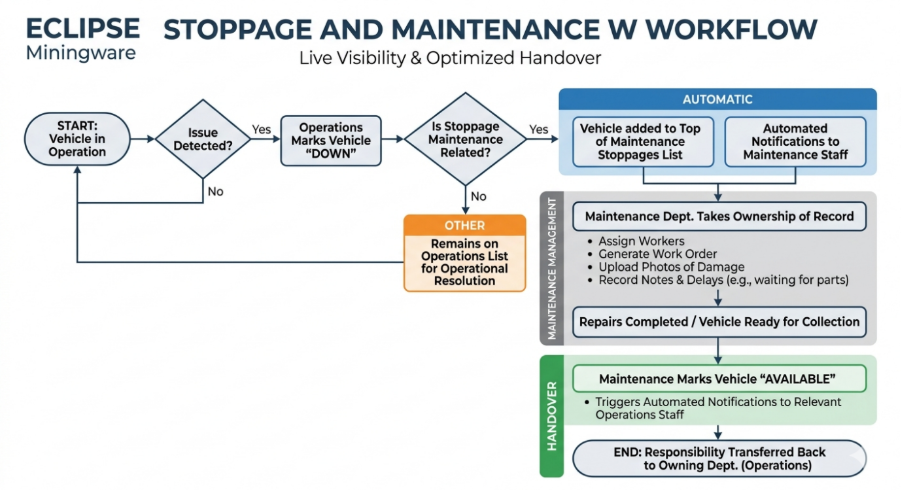
In a high-pressure mining environment, "dead time" usually occurs during the hand-off between departments. Eclipse targets these specific friction points:
- As soon as a vehicle is marked "Down," it is pinned to the top of the Maintenance Stoppage list. This creates a visible digital paper trail that prevents machines from sitting idle because "nobody knew it was broken."
- The moment Maintenance marks a vehicle as "Available," a notification is triggered to the relevant Operations staff. This ensures the engine restarts the moment the tools are put away.
Other key features:
- Maintenance can log specific delays (such as "waiting for parts") and upload damage photographs. This helps staff focus on getting work done instead of looking through paperwork.
- Operations cannot stack multiple stoppages on a vehicle with an active stoppage.
The Stoppage Process (Step-by-Step)
Step 1: Initiating a Stoppage (Operations)
When a vehicle requires attention, the owning department marks the vehicle as "Down" in the Operations List.
- Status Tracking: The stoppage type is color-coded on the status tab for immediate visual identification.
- Validation: Once a vehicle is "Down," the system blocks any further operational stoppages from being added until the current one is resolved.
Step 2: Automated Routing (Maintenance)
If the stoppage is categorized as maintenance-related:
- The vehicle automatically appears at the top of the Maintenance Stoppages List.
- Notifications are sent instantly to users based on their specific department settings (Mobile or Desktop).
Step 3: Maintenance Record Keeping
Maintenance staff take ownership by adding technical details to the record:
- Assignments: Link specific workers and Work Orders to the stoppage.
- Documentation: Upload photographs of damage and add notes regarding specific delays (e.g., "Waiting for Parts"). This provides a shared history that justifies the downtime duration.
Step 4: Handover and Return to Service
Once repairs are complete:
- A Maintenance member marks the vehicle as "Available."
- This triggers a notification to Operations, effectively "handing the keys" back.
- The vehicle is now cleared for production, and the responsibility returns to the owning department.
Measuring the Impact
Every minute a primary excavator sits idle after a repair is finished is lost revenue. Use the Eclipse Calculator to input your machine's hourly cost; you’ll see how shaving just a few minutes off each department handover adds up to significant savings.